Hi Everyone,
You can now quickly offset shapes in Easel without having to go into the app library!
Offsetting creates a new shape from an existing one by widening or shrinking the existing shape.
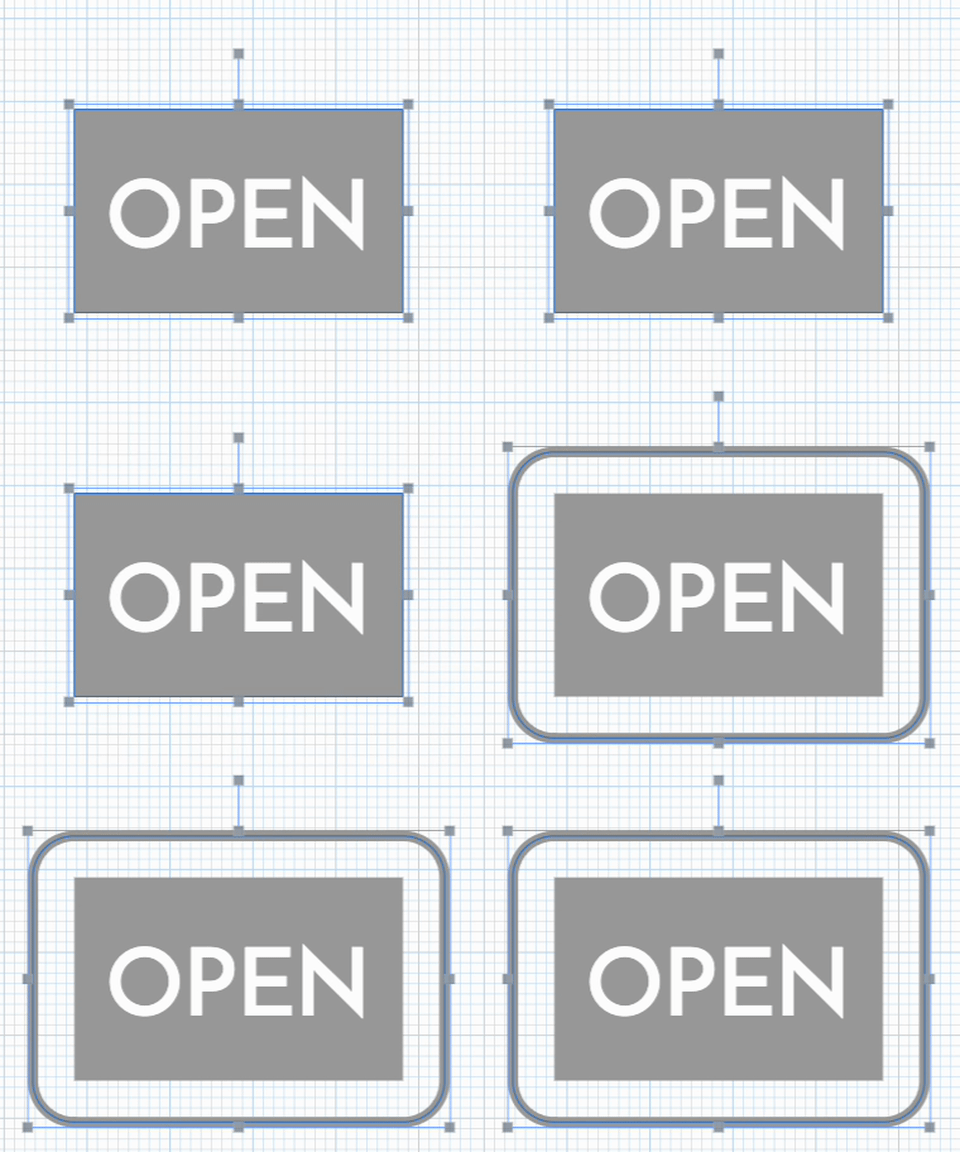
One instance where this can prove useful is when you want to cut out around a design to remove it from the stock, such as when making signs.
Pro tip: When cutting out shapes, offsetting pairs well with the new Outline Bit feature that is currently in early access.
How to Use
There are 2 new ways to offset shapes in Easel:
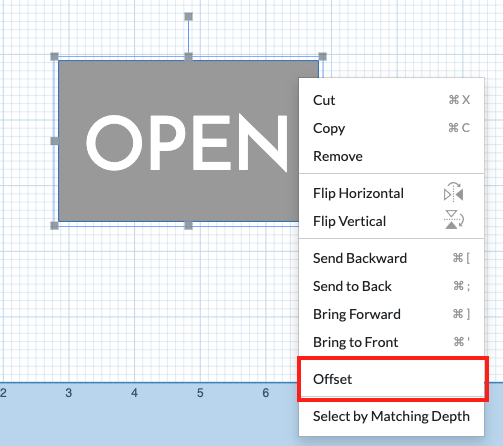
- Right-click on a shape, and then select the “Offset” option. (You can also right-click with multiple shapes selected.)
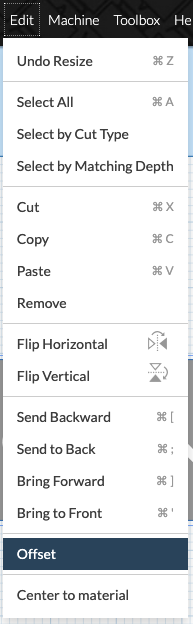
- With one or more shapes selected, choose “Offset” from the Edit menu.
From Right-click Menu
From Edit Menu
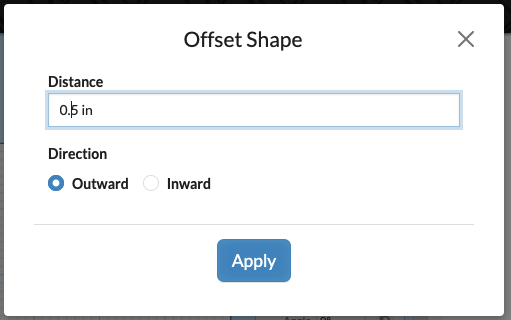
After selecting the offset action, a modal will appear letting you choose the offset distance and direction (inward or outward):
Happy offsetting!